ShareThis

Showing posts with label Fix. Show all posts

Sunday, June 30, 2013

ATI Tray Tools Fix: Can not initialize ATIPDLXX library! Exiting now....

This has happened to some users in Windows 7 and Windows 8. The fix is very simple:

1. Copy atipdlxx.dll into C:\Windows\SysWOW64

2. Rerun ATI Tray Tools. If you get a "could not connect low level driver" issue, reinstall ATi Tray Tools as administrator.


Sunday, November 18, 2012

[FIX] flstudio 10.8 beta access violation at address 00000000

Problem:
Access Violation at address 00000000 when rendering to MP3 in FlStudio 10.8 Beta

Fix:
Copy the lameenc.dll to the FL 10.8 Beta folder from another FL install OR from C:\Program Files (x86)\Image-Line\Shared.Fix:

Sunday, October 21, 2012

[FIX] Warez-BB Running Slow Solution


Here is a quick hack to resolve recent Warez-bb slowness. You will be adding IPs of Warez-bb's forum to your hosts file. If you err on the safe side, you can make a backup copy of hosts file before making the additions.

1.Open hosts file at C:\Windows\System32\drivers\etc and add the following, then save:

119.42.146.34 www.warez-bb.org
119.42.146.36 www.warez-bb.org
119.42.146.34 warez-bb.org
119.42.146.36 warez-bb.org

2. Open cmd as Administrator and type ipconfig /flushdns.

3. Head on over to warez-bb and test your connection!

Thursday, June 14, 2012

[FIX] Sorry, you have exceeded your sharing quota.

Many users report problems of trying to share google docs with other users and getting this error message, preventing them from sharing. It is especially common on new google accounts.

This is a spam countermeasure by google that has had some unfortunate layover into actual users. There is no way to simply remove the barrier. There are steps you can take though:


1. Ensure your account is activated and phone-verified.
2. Close out of the document and re-open it, try to share the document. (success!)


Alternatives:

1. It is suggested to wait 24 hours and try again.
2. Create a Google Group as an alternative
3. Complain on the Google Docs forum

Tuesday, May 8, 2012

How to get 50-60 FPS on BF3 with the ATi Radeon 5770 1gb card (XFX)

This works very well. However, your card can get hot (I will cover how to handle that)

Setup

1. Get HwMonitor
3. Install both
4. Right click on ATT from the notification tray and go to Hardware-->Overclock Settings
5. Before continuing, start HwMonitor and check your gfx card temps (good temps with stock fans are between 30* C and 45* C. 
6. If your card is running hotter than that, it is a good idea to shut down your computer, remove the card, and dust it out using a can of compressed air. Dust will cause the card to get hotter, so get it all out! Running hotter also decreases the lifespan of the card.
7. Check your temps again, if they are in this range, you're set.

Overclocking / Boosting your FPS

1. Under ATT-->Hardware-->Overclocking, set Corespeed up to about 600 (higher if you prefer)
2. Set Memory Speed to 1300 (or higher, your preference)
3. Go to the Fan tab, and choose "Manual speed"
4. Set the fan to 75 or 80. Higher if you choose to go higher than the values I give.
5. Start up bf3 and play!
6. It is best to use a second monitor to watch HwMonitor while you play (so you can see your gfx card temps). 

Note: you may run into problems if you 
1. Dont have a very good cpu (Preferred is >2.8ghz quad)
2. Dont have enough ram (Preferred 4gb minimum)

Sunday, April 1, 2012

How to use Dropbox to sync Android Projects


Hello avid android programmers. If you're like me, you have at least two stations that you program on. A laptop and a desktop pc. In the past you've had some trouble getting android applications to sync between your computers and the workspace on dropbox.

Here is the problem: Workspaces are unique to the computer they are on and the location they are at. So having the same workspace usable from TWO pcs causes them to clash (and subsequently breaks your android builds).

The fix: It is actually really simple. All you need to do is retain the original workspaces on each PC. You dont want to sync the workspace on dropbox (unless only one PC uses it.)

From the secondary pc, or both if you prefer, import the project folder into your eclipse workspace. Do not copy the files into your workspace ( we need them to reference the synced files! ).

You should now be able to run the android emulator and app fine without any startup errors on your secondary device!

Cheers,
Joe


Sunday, March 4, 2012

[FIX] PHP Header( ... ) opens page in Frame instead of new page

Issue: 
Trying to redirect using "header ( ... )"  in PHP. Instead youre getting it opened up in your iFrame

Example:


Fix: 
Add the following to your <a href="..." > links </a >
target="_top"
That'll do it!

Tuesday, February 28, 2012

[SOLVED] Your access to Facebook was redirected or blocked by a third party at this time, please contact your ISP or reload.

This started happening to me randomly while trying to chat with friends tonight. Would not let me send any messages over chat.

Fix: Open a new browser (not the one youre currently on) and log into facebook. Fixed


Thursday, January 5, 2012

[FIX] Hitman Blood Money Crash to Desktop Not responding on Windows 7

How to fix this issue:

1. Get the Hitman Blood Money 1.2 patch (here

2. Go to C:\Program Files\Eidos\Hitman Blood Money\ and open "Configure.exe"

Change the settings (increase resolution) and do Save and Launch. It will now work


Saturday, December 24, 2011

AMD Switchable Graphics Fullscreen Issue FIX (for Laptops)

Here are some Fixes available for laptop users. Hope they come in handy.


FIX 1
I have a Thinkpad E320 (13") with an i5-2410M, 8GB RAM, 320GB 7,200rpm HDD, and an AMD 6630M switchable graphics and whenever I try to run BF3 it always forces the game into windowed mode that I can barely interact with. 

This appears to be an issue that others are encountering too so I thought I would share the quick fix that worked for me. 

I was initially assigning programs to run on either the 6630M or the intel HD3000 graphics and I think that this is where the problem lies.

-----------------------------
What worked for me was going into "Graphics Properties" (by right clicking on the desktop) > "Power" (tab) > "Switchable Graphics Method" > "Select the graphics processor manually based on power source".
-----------------------------

I understand that this method requires you to be plugged in and may not also be to the taste of others who prefer to keep the graphics card on an auto-switchable basis but this is just my fix, there may be a better option out there.


----------------------------------------------------------------------
FIX 2
I made it work for my Dell Vostro 3550 with the same graphics card as you have, except that the Dell provided driver was from August and didn't include the option you describe (manual graphics adapter switching).

I finally uninstalled Dell's version of the driver and installed a version from HP found here:http://forum.notebookreview.com/hp-envy-hdx/582545-drivers-ati-5650-6630-hp-envy-14-a.html [forum.notebookreview.com]


-----------------------------------------------------------------------
FIX 3
FIXED!! - FOR USERS WITH G6 series HP LAPTOPS !! its a temporary fix not a permanent fix 
1 - start the game with fullscreen enabled
2 - alt enter back to window mode USE alt enter not the fullscreen option in game
3 - right click on the desktop and select screen resolution
4 - there will be an option multiple displays click on for a drop down menu and select any option in it jus change it and then apply it (the screen goes black and comes back in 1 sec ) NOTE :- keep the game running dont close it wfor this whole process !
5 - after that jus alt enter back to fullscreen mode and volla everything is working in fullscreen ( selecting menus and players name all hud elements r there properly)
NOTE :- u have to do these steps again when u quit the game all over again so its temporary !! but its better than playin window mode and even u can change ur resolution in game without any problems but when u quit the game and then start again its the same problem again.


================================================
FIX 4
If you have nVidia graphics card and you set the game to run in fullscreen, but it stays in Windowed mode, this may help you (it helped me):

1, Download and install latest driver (currently 285.79 beta) for your nVidia graphics card
2, open nVidia Control panel, change "Display - Adjust desktop size and position - Scaling" to fullscreen (I have "Perform scaling" option se to GPU and "override the scaling mode.." option is OFF, but feel free to experiment with these 2 additional settings if you still have the problem)

Now the game should stay in fullscreen.

Monday, December 19, 2011

[W7 FIX] "The remote procedure call failed and did not execute."

Fix 1: Reboot

Fix 2:

go to Start menu and choose run then type in services.msc

When services comes up look for remote procedure call service and restart it.

But I'd also recommend scanning for virus and spyware because those tend to screw up RPC services.

Sunday, December 18, 2011

[Fix] Steam Validation Rejected (Garrys Mod)


Alright, so I had this problem since a few days ago and for me it got fixed by reinstalling steam. Underneath this part I will post several things that might work. Those methods are not thought of by me but by other Steam users.

Here is my method:

1. Install source multiplayer dedicated server 2007 through steam.


2. Download HLDS updater tool


3. Install HLDS to your /steamapps/$USERNAME$/source dedicated server 2007/ folder


4. Open notepad and save the following to "Server_download.bat" (open notepad and save it as that filename, to the source multiplayer server folder)


(REPLACE C:\srcds INSTANCES WITH YOUR FILE DIRECTORY!!! "USE QUOTATIONS!"
@echo off
cd C:\srcds
echo This will take a long time, I would recommend you go do something else.
echo Updating/installing Garrysmod
hldsupdatetool -command update -game garrysmod -dir C:\srcds -verify_all -retry
echo Updating/installing CS:S
hldsupdatetool -command update -game "Counter-Strike Source" -dir C:\srcds -verify_all
echo Updating/installing dods
hldsupdatetool -command update -game "dods" -dir C:\srcds -verify_all
echo Updating/installing hl2mp
hldsupdatetool -command update -game "hl2mp" -dir C:\srcds -verify_all
echo Updating/installing tf
hldsupdatetool -command update -game "tf" -dir C:\srcds -verify_all
echo Updating/installing sin
hldsupdatetool -command update -game "left4dead" -dir C:\srcds -verify_all
echo Updating/installing left4dead2
hldsupdatetool -command update -game "left4dead2" -dir C:\srcds -verify_all
echo Updating/installing episode1
hldsupdatetool -command update -game "episode1" -dir C:\srcds -verify_all
echo Updating/installing orangebox
hldsupdatetool -command update -game "orangebox" -dir C:\srcds -verify_all
echo Update/installation Complete
echo Installed to c:\srcds\
echo Your server is now ready to use!
echo To add extra addons or maps etc. place them in c:\srcds\orangebox\garrysmod\
echo This installer can also update necessary server files, so it is recommended that you run it often.
pause

5. Run server_download.bat, it will update all of the games listed (remove any that you dont want to include). this takes a LONG time!!!

6. there should be a "srcds.exe" in your source 2007 dedicated server folder. Make a shortcut to it. Add "-game garrysmod" under "Target:" so it looks like "dedicated server\srcds.exe" -game garrysmod 

7. Run that shortcut. A server startup window should appear, start your server! Validation problem gone!!!!


Here are methods found by other users:

-The list of methods underneath start with easy methods which might fix it, the lowest ones are the ones that might take a little longer because of reinstalling/updating of Steam.

1.Verify the Integrity of the Game Cache

  1. Open Steam and go to your Library - Games.
  2. Right Mouse click on the game that gives the error, select Properties.
  3. Go to the Local Files tab and click on Verify integrity of game cache.
  4. Try to run your game and join a server. 


2.Steam_appid.txt

  1. Install Source Dedicated Server, it's only a few MB and won't take that much space.
  2. Start it once, then close it.
  3. Go to your Steam directory, (C:/Program Files/Steam), and go into the Source Dedicated Server folder. (C:/Program Files/Steam/Steamapps/%USERNAME%/Source Dedicated Server).
  4. Make a new .Txt file and call it steam_appid.txt
  5. Open the file and put the ID of the game that gives the error. The ID's can be found by going to the Steam Store and search for the game that gives the error. The number at the end of the link is the ID of the game, for example Garry's Mod: http://store.steampowered.com/app/4000/, fill in 4000 in the text file. 
  6. Save the file 
  7. Try to start the game that gave the error and join a server.
  8. (If this doesn't work try to create a new folder in the Source Dedicated Server folder called the name of the game that gives the error and insert the text file.)


3.Deleting ClientRegistry.blob
Another fix that might help is deleting the ClientRegistry.blob file in your Steam folder.

  1. Close Steam.
  2. Go to your Steam folder, for example: C:/Program Files/Steam.
  3. Search for the file called ClientRegistry.blob and delete it.
  4. Start Steam and let it update.
  5. Try to start the game that gave the error and join a server.


4.Deleting almost all files in your Steam folder
This is an alternative on the fix above which might solve it if nothing else helps.

  1. Close Steam.
  2. Go to your Steam folder, for example: C:/Program Files/Steam.
  3. Press CTRL+A, once all files and folders are selected hold CTRL and deselect SteamApps and Steam.exe, then delete them by either pressing Right Mouse button -> Delete or just by hitting your Delete key on your keyboard.
  4. Open Steam and let it update.
  5. Try to start the game that gave the error and join a server.


5.Nothing worked... HELP!
If nothing helps the only thing left to do is reinstall Steam, don't forget to make a backup from homemade maps or addons! This will save you a lot of pain and work.

  1. Close Steam.
  2. Open your Control Panel (Start/Windows Sign -> Control Panel).
  3. In the upper right corner there will be some text saying View by:, click on the text next to it and change it to Category if it isn't set to this yet.
  4. Underneath the title: Programs choose for the option Uninstall a program.
  5. Wait a few seconds/minutes until a list of programs shows up, search for Steam, select it, right mouse button and choose for the option Uninstall, follow the windows pop-up to uninstall it.
  6. Go to the About Steam page(click About Steam) and click on the Install Steam Now button.
  7. Follow the steps and install Steam. Now install your game(s) and if you have backups of maps or addons you can place them back after you played the game once.
  8. Start the game, join a server and it should be fixed.


6.It's still not fixed, what now?
If you still get the errors ask yourself the following things:

  1. Did my Steam Account get disabled by a Steam Administrator?
  2. Did I buy the game(Steam) or did I download it illegally(Non-Steam)[Please note that you can also buy games in stores, with illegally I mean that you did not pay any money for it IF it wasn't a free game like Alien Swarm].


If you are sure that the two things noted above are not your problems, try to open a ticket at the Steam Support page.

Sunday, December 11, 2011

BF3 Fix: Speed Up Map Loading Times


Nvidia Cards:

1) Open up Nvidia Control Panel (Tutorial)
2) Click on Manage 3D Settings
3) Click on Program SettingsSelect Battlefield 3 in the drop down box (
**If it's not there click add and find bf3.exe located C:\Program Files (x86)\Origin Games\Battlefield 3)
4) Find Threaded optimization
5) Turn On
6) Click Apply


AMD/ATI Cards:

1) Download ATT (http://downloads.guru3d.com/download.php?det=733)
2) Install
3) Right click on the icon in the bottom right corner of your screen
4) Click on Tweaks
5) Click on Advanced Tweaks
6) In the drop down box select Multi Threaded SupportChange to 2 or 4
(Depending on how many cores you have on your CPU)
7) Make sure the radio box above is ticked
8 ) Click apply


Maps should now load faster.

BF3 Green Flicker Ingame fix


If you're like you've noticed a green screen flicker occasionally while playing BF3. The consensus is that this is due to VRAM limits (weird, I have 1GB of DDR5 VRAM...)

The fix is to turn down some of your more intensive graphic settings (I.e. AA to 2x MSAA, or off completely.)

Saturday, December 10, 2011

[FIX] Annoying BF3 Screen flicker with 5770. BSOD Overheating

Scenario:
  • You have a ATi Radeon 5770 (probably XFX brand)
  • You have a dual monitor setup (one in HD, one in DVI)
Problem:
  • Starting BF3 causes intense screen flickers
  • Can run the game for about 15 minutes before a black screen appears, audio freezes, gpu fan becomes as loud as vacuum, and you're forced to restart.
Fix: It isn't practical, but it works.
  1. Make sure you are up-to-date on ATi Drivers (11.11)
  2. Unplug your secondary monitor before launching BF3.
  3. Open up the ATi Vision Engine Control Center, go to Performance.
  4. Enable OverDrive (settings: 600 MHz, 1200 MHz respectively)
  5. Enable manual fan control. Set to 100%.
This will do two things:
 1. Down to one monitor will remove the screen flickering issue (a problem inherent with the card's inability to manage multiple refresh rates at low clock speeds)
2. With the fan at 100%, your card will likely peak at 95* C or 96* C but will not overheat (unless you have poor air ventilation or are running bf3 for hours on end...)

Good luck.

Alternative:

- Download ATT (Ati Tray Tools) from guru3d.com. This program gives additional functionality to the rather shitty ATi Control Center, and is much more stable of a program to use than ATi's. First day using it and I already highly recommend it.

Sunday, November 20, 2011

[DROID] Conversion to Dalvik format failed with error 1 - Android SDK 15

If you recently just update to Android SDK 15... You might be getting this error:

Conversion to Dalvik format failed with error 1 
trouble processing "java/nio/CharBuffer.class": 

Ill-advised or mistaken usage of a core class (java.* or javax.*) 
when not building a core library. 

This is often due to inadvertently including a core library file 
in your application's project, when using an IDE (such as 
Eclipse). If you are sure you're not intentionally defining a 
core class, then this is the most likely explanation of what's 
going on. 

However, you might actually be trying to define a class in a core 
namespace, the source of which you may have taken, for example, 
from a non-Android virtual machine project. This will most 
assuredly not work. At a minimum, it jeopardizes the 
compatibility of your app with future versions of the platform. 
It is also often of questionable legality. 

If you really intend to build a core library -- which is only 
appropriate as part of creating a full virtual machine 
distribution, as opposed to compiling an application -- then use 
the "--core-library" option to suppress this error message. 

If you go ahead and use "--core-library" but are in fact 
building an application, then be forewarned that your application 
will still fail to build or run, at some point. Please be 
prepared for angry customers who find, for example, that your 
application ceases to function once they upgrade their operating 
system. You will be to blame for this problem. 

If you are legitimately using some code that happens to be in a 
core package, then the easiest safe alternative you have is to 
repackage that code. That is, move the classes in question into 
your own package namespace. This means that they will never be in 
conflict with core system classes. JarJar is a tool that may help 
you in this endeavor. If you find that you cannot do this, then 
that is an indication that the path you are on will ultimately 
lead to pain, suffering, grief, and lamentation.

Fix:

1. Remove "android.jar" from your build libraries. It shouldnt be included in them (you may have done this because it wasn't finding the Android libraries).

2. Next, right click on the project, then go to Android Tools -->  Fix Project Properties.

This should fix the issue.

------------------------

NOTES: I was wrong with my original fix- that worked for me, but this error can happen whenever a library is being included more than once. Make sure that all of your libraries are only imported once!

BF3 Game got disconnected () Port Fix


There have been some confirmations that this has worked:


1. download Simple Port Forwarding [simpleportforwarding.com] Simple Port Forwarding 
2.open program . 
3.Select Router 
4 bt start 20000 - 20100 tcp 
bt2 80-80 tcp 
bt3 14000-14016 UDp 
bt4 22990-23006 UDP 
bt5 25200 - 25300 UPD 
remember to Turn UPnP off (if you dont know what pass and login you have on router google it ) 
5 update router 
6 Done!!! have fun with no more time out or server disconnect !!! 
7. Or look on youtube how to make it ! Video Tutorial [youtube.com] 

And remember to change it in windows !!!! 

1.run || services.msc 
2.search for UPnP Divice Host press right button on it and stop 
3.SSDP Discovery press right button and stop 
4.Go control panel Network and Sharing Center and click on Change advanced sharing settings 
5.Turn off network discovery ! 
6.Done 
7. Or look on youtube how to make it http://www.youtube.com/watch?v=A_F3XLatIRw [youtube.com]

Wednesday, November 9, 2011

EA Workarounds for Known BF3 Issues

1. BF3 Cannot Activate When Launched http://forum.ea.com/eaforum/posts/list/7667466.page 

-Symptom: Upon launch a error message appears stating "Could Not Activate" 
-Workaround: Delete the BF3 license file to to force a license update. 

1. Exit Origin completely. 
2. If you received a valid license key it will be located below: 
C:\ProgramData\Electronic Arts\EA Services\License 
*Program Data may be a hidden folder on your machine* 
http://windows7themes.net/how-to-unhide-hidden-files-in-windows-7.html 
3. Delete either 71067.dlf or 71069.dlf (depending on if you have Limited Edition or Standard) 
4. Reboot your machine. 
5. Launch Origin and login 
6. Launch BF3 

2. Origin 8.3.2 Install Loop 

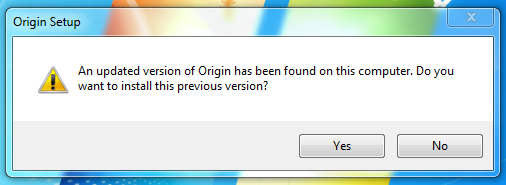
This is a confusing messaging issue. If you download the beta opt-in build 8.3.2 and unclick the beta opt-in settings in Origin. You will be prompted to downgrade to the required build of 8.3.1. Clicking yes will allow you to downgrade to 8.3.1. 

Clicking no will bring up this screen again because your opt in settings have been unclicked. 


Workaround 1: Click Yes to downgrade. 
Workaround 2: Login without downgrading with these steps. 

1. Disconnect from the internet. 
2. Start Origin (you will get a log-in screen) 
3. Re-connect to the internet. 
4. Log in to Origin. 
5. Once logged in click on the Cog to get a drop box. 
6. Click on settings. 
7. Scroll to the bottom of the list and check the two boxes under "Origin Pre-release Participation" 

They are : 
"Update to the pre-release version if available" 
"Enable cloud storage for all supported games" 
Click [DONE] to finish. 

3) "Origin not installed" Message when launching BF3 

This could happen if you are installing Origin in one location (C and then moving it to another directory which would break your registry key, or if you your permissions set up in a way that Origin cannot write to your registry or register itself. This could also be a battlelog compatibility issue with your browsers. 

Workaround 1: 

If you are savvy with navigating the Windows registry, look here: 
HKEY_CLASSES_ROOT\origin\shell\open\command 
The (default) key should be set to the Origin executable. 
If not, that's the cause of the issue. Reinstalling Origin should repair it. 

Workaround 2: 

1. Click start 
2. Click Run 
3. Type cmd ( a black screen appears) 
4. Type cd "C:\Program Files (x86)\Origin" assuming you have win7/vista x64 installed, else type cd "C:\Program Files\Origin" 
--> The quotation marks are important 
5. Path is now changed to the origin dir. 
6. Type origin.exe /Register 
7. Start origin 
8. Play 

Workaround 3: 

Right click on the Origin and BF3 Shortcuts and select "Run as Administrator." 

Workaround 4: 

This could be a browser compatibility issue with Battlelog.Try downloading Internet Explorer 9 and launching the game with different versions of that browser. 

Workaround 5: 

If you frequently run Registry Cleaner tools on your PC, they can inadvertently delete important registry keys that Origin requires to function. If your Registry Cleaning software has an exclusions list or safe list, try adding any Origin registry entries detected by your software to your list of “known safe” or “Excluded” files. 

This should prevent your Registry Cleaning software from interfering with Origin’s functionality in the future 

4. "Ready for Installation" Message when download completes 

This could occur if the download is not allowed to completely unpack. 

Workaround 1: 

Search in your Battlefield 3 file folder for your BF3.exe. If you see a file called bf3.exe_DiP_STAGED, rename it to bf3.exe.